
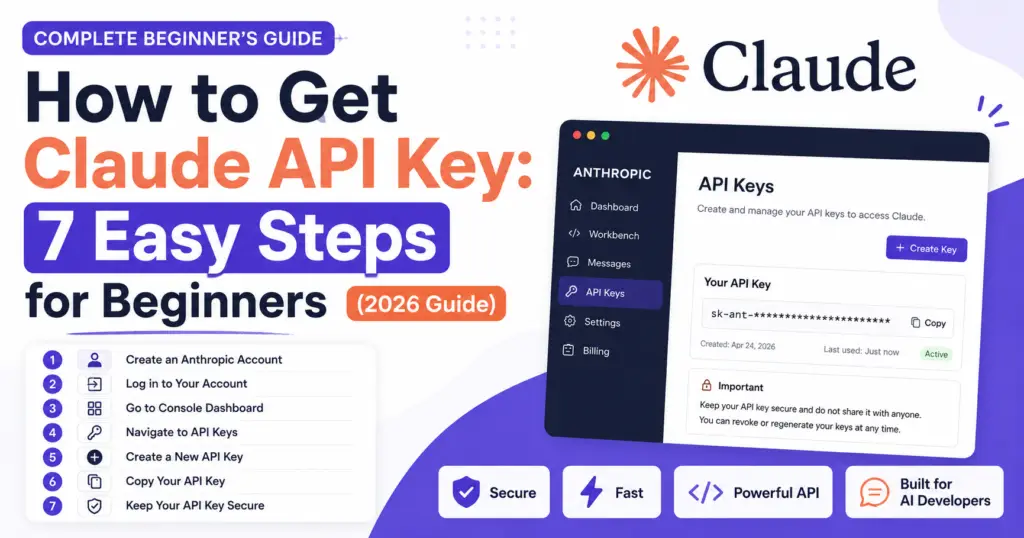
How to Get Claude API Key: 7 Easy Steps for Beginners (2026 Guide)
Last Updated: August 2026
If you’re building an AI-powered website, application, automation workflow, or software project, you may be wondering how to get Claude API key and start using Claude programmatically.
The good news is that the basic process is straightforward: create the appropriate developer account, open the developer console, find the API key section, create a key, and store it securely.
But getting the key is only one part of the process. You also need to understand where the key belongs, how to protect it, what to do if it stops working, and how to avoid accidentally exposing it.
This guide walks beginners through the process step by step.
Important: Never publish your real Claude API key in a blog post, GitHub repository, screenshot, frontend JavaScript file, or public website.
What Is a Claude API Key?
A Claude API key is a credential used by an application to authenticate API requests.
In simple terms, your application needs a way to prove that it is authorized to communicate with the API. The API key provides that credential and can also be associated with usage monitoring and access controls.
Because an API key can provide access to API services depending on your account and configuration, you should treat it like a sensitive secret.
If a key is exposed, someone else may potentially use your API access and generate unexpected usage or charges.
How to Get Claude API Key: Quick Overview
Here are the basic steps:
- Create the required Claude/Anthropic developer account.
- Verify your account if verification is required.
- Sign in to the developer console.
- Find the API Keys or API Access section.
- Create a new API key.
- Copy and store the key securely.
- Add the key to your application using a secure secret-management method.
The exact names and location of dashboard options can change over time, so use the current official Anthropic documentation if your dashboard looks different.
7 Steps to Get a Claude API Key
Step 1: Create Your Developer Account
Start by creating the appropriate account on the Claude/Anthropic developer platform.
Use an email address that you can access because you may need to verify your account or receive important account notifications.
When creating your account:
- Use an active email address.
- Create a strong, unique password.
- Complete any required verification.
- Keep your account credentials private.
If you already have the required developer account, you can move directly to the next step.
Step 2: Verify Your Account
If the platform asks you to verify your email address, complete the verification before continuing.
Check your:
- Inbox
- Spam folder
- Promotions folder
- Junk folder
If you do not receive the verification message, confirm that you entered the correct email address and follow the current account-support instructions.
Account requirements and onboarding steps can change, so don’t rely entirely on an old screenshot or tutorial.
Step 3: Open the Developer Console
After signing in, open the developer dashboard or console associated with your API access.
Depending on the current interface, you may see sections related to:
- Projects
- API access
- API keys
- Usage
- Billing
- Documentation
- Settings
The interface may change over time.
If you don’t immediately see an API Keys option, check the developer console, project settings, API access settings, or the current official documentation.
Step 4: Find the API Keys Section
Look for an option such as:
API Keys
or
API Access
or a similar credential-management section.
Open the relevant page.
This is where you can normally manage the credentials associated with your developer account or project.
If you’re following an older tutorial and the menu looks different, don’t assume that something is wrong. Developer dashboards are regularly updated.
Step 5: Create a New API Key
Once you reach the API key management area:
- Select the option to create or generate a new key.
- Enter a descriptive name if requested.
- Select the appropriate project or configuration if required.
- Generate the key.
- Copy it securely.
Your key may only be displayed in full when it is first created.
For that reason, save it securely before leaving the page.
Never Put Your Real Key in an Article
Never publish something like this with your actual credential:
YOUR_REAL_API_KEY
That is only a placeholder.
Your real key should never appear in:
- Blog posts
- Public GitHub repositories
- Screenshots
- Public code snippets
- Frontend JavaScript
- Public HTML
- Social media posts
- Videos or tutorials
Step 6: Store Your Claude API Key Securely
Knowing how to get Claude API key isn’t enough. Secure storage is equally important.
A common approach is to store the credential in an environment variable.
For example:
CLAUDE_API_KEY=your_api_key_here
Your application can then read the environment variable instead of hard-coding the secret directly into your source code.
This makes it easier to keep credentials separate from your application logic.
Don’t Commit Your .env File
If your project uses a .env file, make sure it is excluded from Git.
For example:
.env
.env.*
Be especially careful before pushing a project to GitHub or another public repository.
A single accidentally committed secret can create a security problem.
Step 7: Use the API Key from Your Backend
One of the most important beginner mistakes is putting a private API key directly into browser-side JavaScript.
Avoid this pattern:
const apiKey = "YOUR_REAL_API_KEY";
Anyone who can inspect the frontend code may potentially obtain the credential.
A safer architecture is generally:
User
  ↓
Your Website / App
  ↓
Your Backend Server
  ↓
Claude API
Your backend keeps the secret and makes the API request on behalf of the application.
For applications that require authentication, billing controls, usage limits, or user-specific access, a server-side architecture is especially important.
Example: Reading the API Key in Python
If you’re building a Python application, you can read the secret from an environment variable:
import os

api_key = os.getenv("CLAUDE_API_KEY")

if not api_key:
    raise ValueError("CLAUDE_API_KEY is not configured")

print("API key loaded successfully")
Notice that the example does not contain a real API key.
The actual API request implementation should follow the current official Anthropic documentation because SDKs, authentication methods, endpoints, model names, and request formats can change.
How to Keep Your Claude API Key Safe
Use this checklist before deploying your application:
- Keep the API key private.
- Store secrets in environment variables or a suitable secrets manager.
- Do not commit
.envfiles to Git. - Never place private API credentials in frontend JavaScript.
- Don’t publish API keys in screenshots.
- Don’t paste real keys into tutorials.
- Review API usage regularly.
- Use the minimum permissions required.
- Rotate or revoke a compromised key.
- Follow the current official API documentation.
The goal is simple: your users should never need to see your private API credential.
Understanding API Permissions and Limits
API access can involve permissions, usage restrictions, rate limits, account configuration, and billing.
The exact options available depend on the current platform and your account or project configuration.
A useful security principle is least privilege: give an application only the access it actually needs.
You should also understand your expected usage before launching a production application.
For example, a small personal experiment may generate relatively few API requests, while a public application with hundreds or thousands of users could generate substantially more.
Always check the current documentation and account information before estimating costs or limits.
Common Claude API Key Problems
1. I Can’t Find the API Key Option
First, check:
- Developer console
- Project settings
- API access
- Account settings
- Current official documentation
Don’t assume that an old tutorial has the same dashboard layout as the current platform.
2. My API Key Doesn’t Work
Check the following:
- Did you copy the complete key?
- Did you accidentally add spaces?
- Is the correct environment variable being loaded?
- Has the key been revoked?
- Is the correct project configured?
- Does your API request follow the current documentation?
Also read the exact error message returned by the API.
3. I Accidentally Published My API Key
If you accidentally exposed your key, deleting the public post or repository isn’t enough.
Treat the credential as compromised.
Revoke or rotate the exposed key through the appropriate developer console and then review recent API activity for anything unexpected.
4. My API Requests Are Failing
Different errors can have different causes.
For example, an API request may fail because of:
- Authentication problems
- Invalid request parameters
- Account configuration
- Rate limits
- Incorrect environment variables
- An outdated SDK or implementation
Start with the error message and compare your implementation with the latest official documentation.
Frequently Asked Questions
How to get Claude API key as a beginner?
Create and verify the required developer account, sign in to the developer console, open the API key management section, generate a key, and store it securely.
Is a Claude API key free?
Don’t assume that API access is completely free. Pricing, credits, limits, and billing policies can change.
Always check the current official pricing and developer documentation before starting a project.
Where can I find my Claude API key?
Your API key is normally managed through the developer console or API key management area associated with your account or project.
Can I share my Claude API key?
No. Treat your API key as a sensitive credential. Never share it publicly.
Should I put my Claude API key in JavaScript?
You should avoid exposing private API credentials in browser-side JavaScript.
For most applications, use a protected backend or another appropriate secure architecture.
What should I do if my Claude API key is exposed?
Revoke or rotate the compromised key as soon as possible and review recent API usage for suspicious activity.
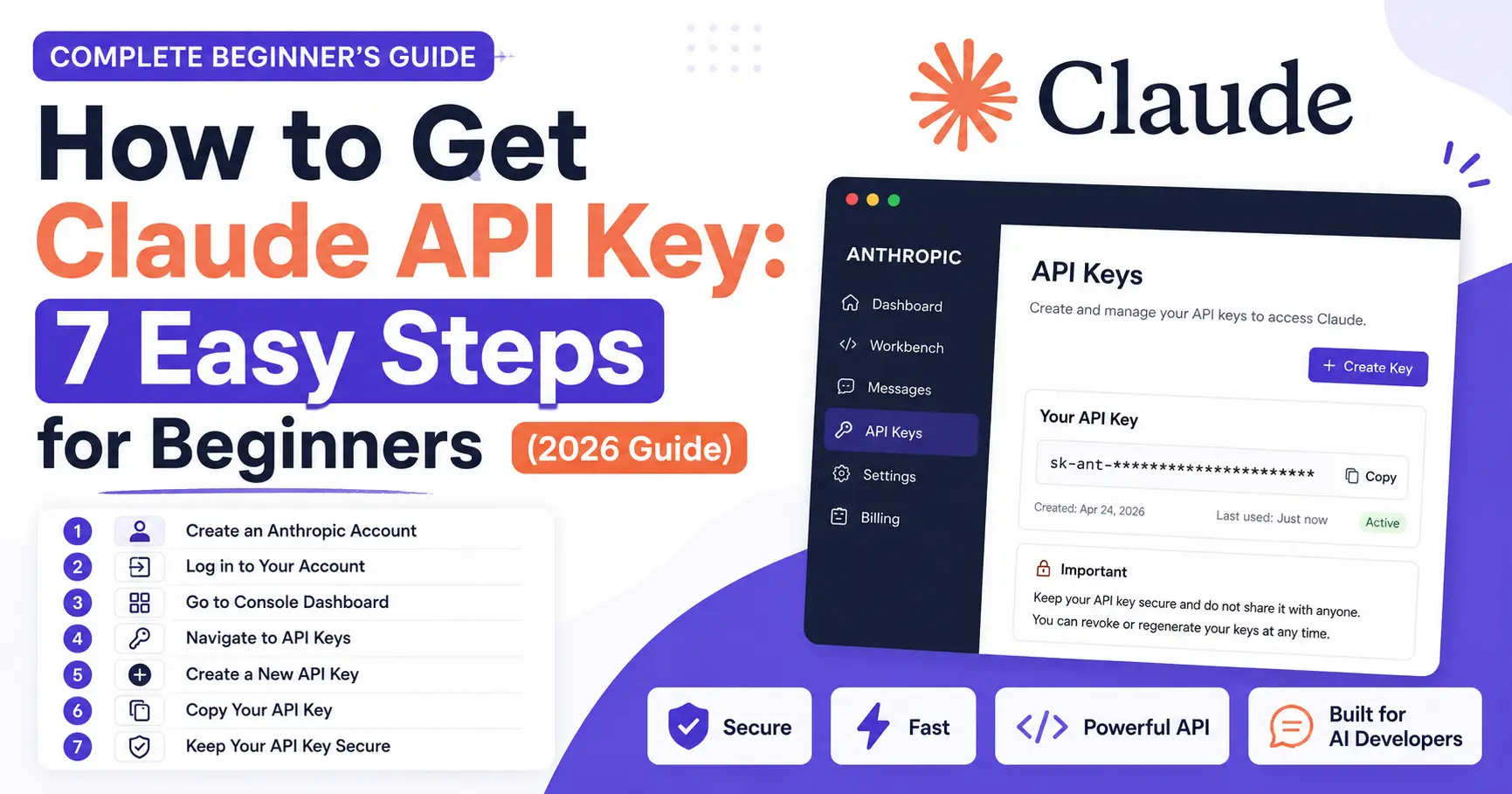
Before You Start Building: A Simple Security Checklist
Before connecting Claude to your website or application, ask yourself:
Who can access the key?
Only your server-side application or authorized secret-management system should normally have access to the private credential.
Where is the key stored?
Prefer an environment variable or appropriate secrets-management system rather than hard-coding it into your application.
Can visitors see it?
If the key appears in browser source code, public JavaScript, screenshots, or a public repository, it may be exposed.
What happens if the key leaks?
Know how to revoke or rotate the credential before you deploy your application.
These questions can prevent many common beginner security mistakes.
What to Do After Getting Your Claude API Key
Once your API key is securely configured, you can move on to the actual API integration.
Your next steps may include:
- Choosing the appropriate Claude model.
- Installing the required SDK or using the API directly.
- Creating a backend API route.
- Sending a test request.
- Handling errors.
- Monitoring usage.
- Adding authentication and rate limiting for your own users.
Do not blindly copy an old API endpoint, model name, or SDK example from an outdated tutorial. Always compare your implementation with the current official Anthropic documentation.
Why Secure API Key Management Matters
An API key is not something you should think of as just another piece of configuration.
It is a credential.
If someone gets access to it, they may be able to make requests using your account or project depending on the current permissions and configuration.
That’s why a secure architecture is more important than simply knowing how to get Claude API key.
A good beginner workflow is:
Get the key → Store it securely → Keep it on the server → Monitor usage → Rotate it if compromised.
Final Thoughts
Learning how to get Claude API key is a relatively simple first step toward building AI-powered applications.
The basic workflow is:
Create account → Verify → Open developer console → Find API Keys → Generate key → Store securely → Connect your backend.
But don’t stop at obtaining the credential.
Good API development also means protecting secrets, avoiding frontend exposure, monitoring usage, using appropriate permissions, and keeping your implementation aligned with the latest official documentation.
Most importantly, build the article—and your application—for people first. Google’s current guidance emphasizes useful, reliable, original content that genuinely helps visitors accomplish their goals rather than content created primarily to manipulate search rankings. Google also recommends thinking about Who created the content, How it was created, and Why it exists.
For this guide, that means clearly identifying the author, linking to authoritative documentation, explaining practical security decisions, and adding your own useful experience or testing where applicable rather than simply rewriting information from other websites.
Official Resources
For current API authentication, SDKs, endpoints, models, pricing, and usage information, always prioritize the official Anthropic/Claude developer documentation.
Editorial note: This guide focuses on the beginner workflow and security principles. Dashboard labels, pricing, models, SDKs, and API implementation details can change, so verify those details against the current official documentation before using them in production.




1 Comment